Website Changes (Editing the Logo)

Editing the logo

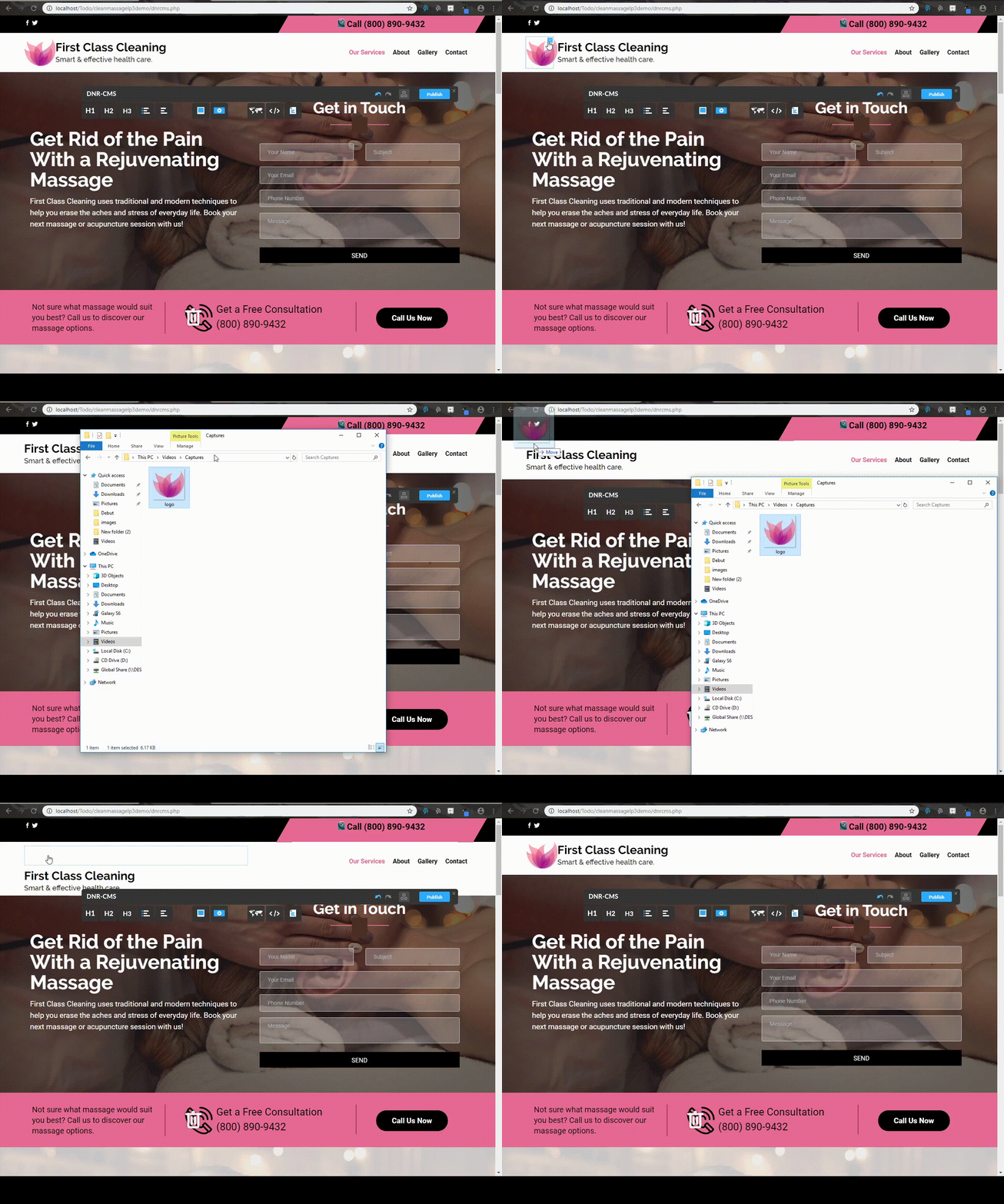
1) In order to change the logo, you must first delete the current one with the "X" button located at the top right of the image when hovering over it.

2) Then drag your desired logo above the company title as shown in the video below.

3) You can resize it if needed by selecting the image and dragging one of the four squares situated on each corner.
  • 0 Utilisateurs l'ont trouvée utile
Cette réponse était-elle pertinente?

Articles connexes

Website Changes (Publishing Changes)

Reverting Changes In order to revert changes, you must simply press CTRL and Z simultaneously....

Website Changes (Adding or removing images from the gallery)

Adding or removing images from the gallery In order to add images to the gallery, you can use...

Website Changes (Adding Adding a Google Map / Editing Existing Map)

Adding a Google Map To add a Google Map with your location to your website, you can simply drag...

Website Changes (Attaching files to your website)

Attaching files to your website You can attach files to your website by dragging the "Upload...

Website Changes (Embedding Youtube and Twitter links)

Embedding Youtube and Twitter links You may also add embedded Youtube videos or Twitter posts by...